Your couch called. It has plans.

Your private playlists deserve a modern player. Live TV, movies and series, for less than the snacks. Your longest journey should be finding the remote.

LazyPlayer on Android TV: the home screen with poster shelves from a sample playlist of open movies

App web-build capture in TV layout · About the sample titles

  • Cinematic browsing, made for your remote.
  • Recommendations from your own library.
  • Buffer ahead. Save favorites. Resume.

M3U · Xtream Codes Bring your own playlist.

Take a couch tour
  • M3U playlists
  • Xtream Codes
  • XMLTV guides
  • Live TV
  • Movies
  • Series
  • Favorites
  • Search
  • Seasons & episodes
  • Audio & subtitle tracks

The player

The best seat. For everything you love.

Six scenes from a very relaxed evening. Big-screen browsing, picks that learn your taste and a little head start on buffering. Your couch can handle the rest.

App web-build captures in TV layout and illustrative feature visuals. Captures show a sample playlist of Creative Commons open movies, mostly by the Blender Foundation; overlays and the playlist screen are illustrations. No content or live playback is included.

Settling in

Your library.
Its big-screen debut.

Cinematic artwork, generous poster shelves and a clear remote focus. Open a title, read the story, then return to the same place with Back.

  • Movies, series and live TV together
  • Favorites, search and unwatched filters
  • Language and quality variants, where available
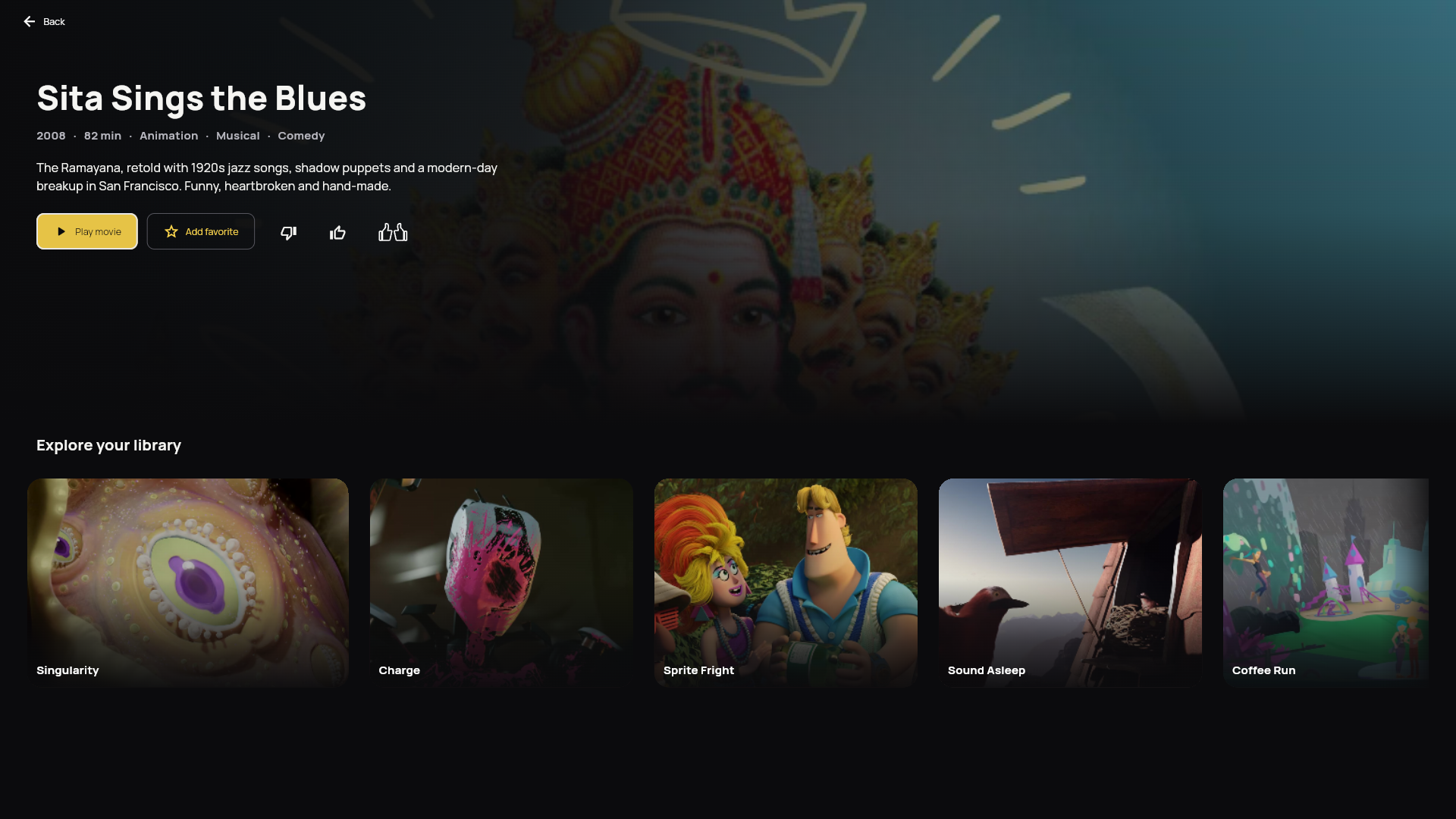
App TV-layout title details for Sita Sings the Blues, with Play, favorite and rating actions above an Explore your library shelf
App web-build capture in TV layout · open-movie sample playlist

The big decision

Less “what now?”
More “that one.”

Your history, favorites and ratings help rank unwatched titles from your own playlists. Related shelves explain why a title caught your player’s eye.

  • Picked for you, from your available library
  • “Because you watched…” gives the context
  • Popular available titles help when you’re new

Enough history allows learned rankings to be evaluated. Suggestions need suitable titles; no specific pick is guaranteed.

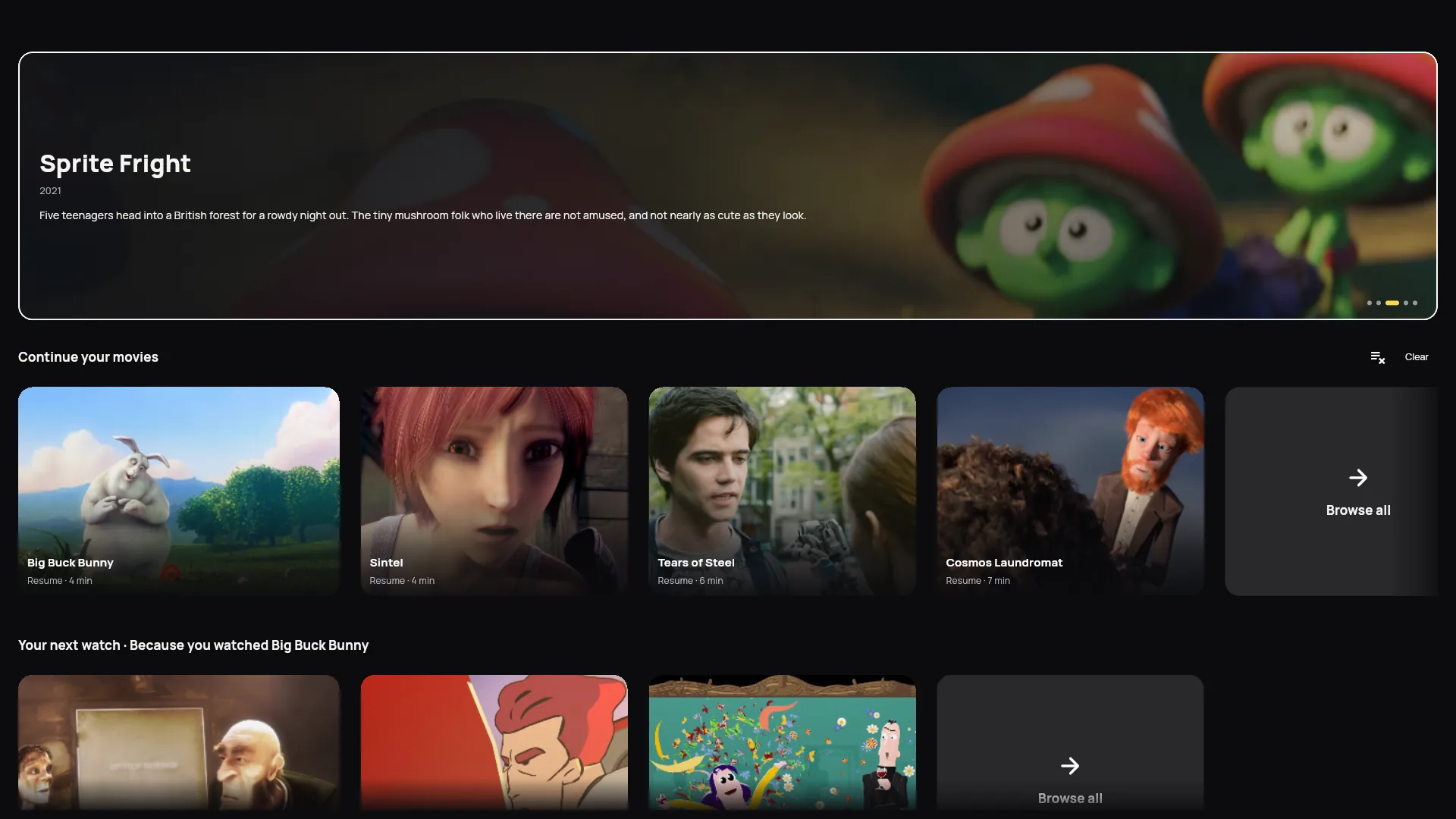
App TV-layout home screen: Big Buck Bunny focused in Continue your movies, above a Your next watch shelf because you watched Big Buck Bunny
App web-build capture in TV layout · Illustrative ranking overlay

The Wi‑Fi blinks

A little ahead.
Of the next hiccup.

Temporary buffering loads media ahead while you watch. That already-loaded portion can bridge a brief connection drop, until it runs out.

  • Auto or 15, 30 and 60-second targets
  • Longer live buffers add delay behind live TV
  • Adaptive quality needs provider renditions

Targets are not guaranteed coverage. This is not a saved offline download; long outages or slow streams can still interrupt playback.

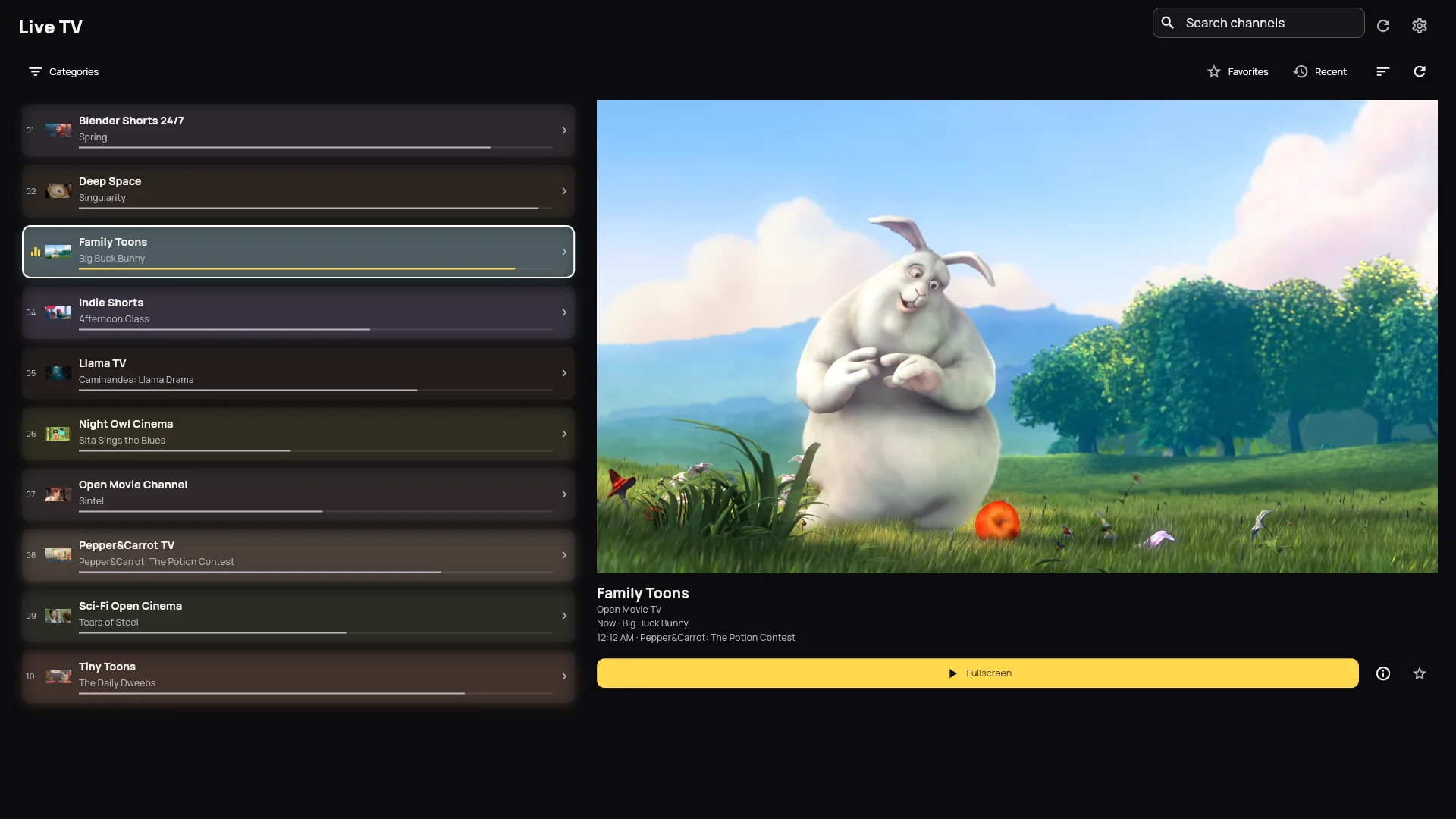
App TV-layout live TV screen: Family Toons focused in the channel list, with its preview showing Big Buck Bunny
App web-build capture in TV layout · buffer illustration, 30-second target

Episode two

“Just one more.”
Famous last words.

Your seasons and episodes stay in order when your playlist supplies them. Continue where you stopped, skip an intro you’ve marked, or cancel the next-episode prompt.

  • Remembered movie and episode progress
  • Previous and next available episode
  • Manual or automatic intro skipping
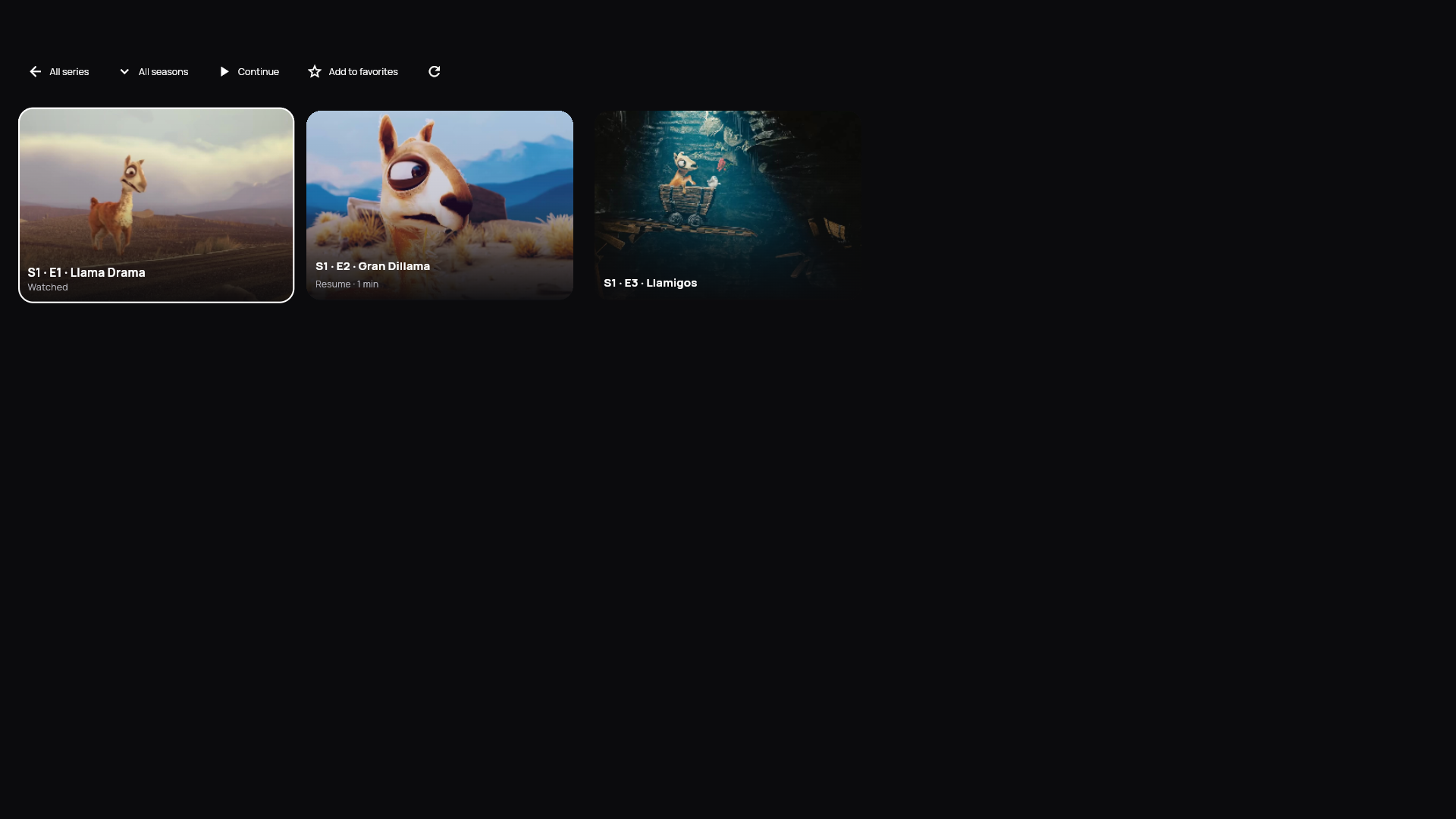
App TV-layout episode list for Caminandes: episode 1 watched and focused, episode 2 ready to resume, episode 3 next in the list
App web-build capture in TV layout · open-movie sample playlist · labels illustrative

Snack run

Pause for snacks.
Stay for the plot.

Resume a supported movie or episode, or start again. Seeking, fullscreen and detected audio or subtitle tracks stay within reach of your remote.

  • Audio languages and in-stream subtitles
  • Fit, crop and stretch picture options
  • HDR, Dolby and adaptive quality depend on stream and TV
App TV-layout player controls over the open movie Pepper&Carrot: The Potion Contest, at 6:28 of 7:34
Actual player capture · still image, no video playing · labels illustrative

Tomorrow’s lineup

A tidy library.
An untidy sofa.

Saved playlists keep their own favorites and history. Switch sources from your remembered phone dashboard, without wrestling the TV keyboard.

  • M3U URLs and Xtream Codes
  • Refresh schedules, cancellation and saved-library recovery
  • Hide titles, reorder and correct artwork

Removing a source or clearing history asks for confirmation. TV density controls adjust browsing to your screen.

Playlist illustration · your real sources are unchanged

Live TV

Channel surfing. Zero actual surfing.

Browse channels and provider categories beside a live preview. Switch channels with your remote while keeping the guide close.

Connect your TV

Now, and what’s next.

Add an XMLTV guide to see current and upcoming programmes where listings match your channels.

Your favorite channels, closer.

Save favorites, search by name and return to the channel you were browsing.

Keep the evening moving.

Remote controls stay close to playback. If a stream fails, retry or return to your library.

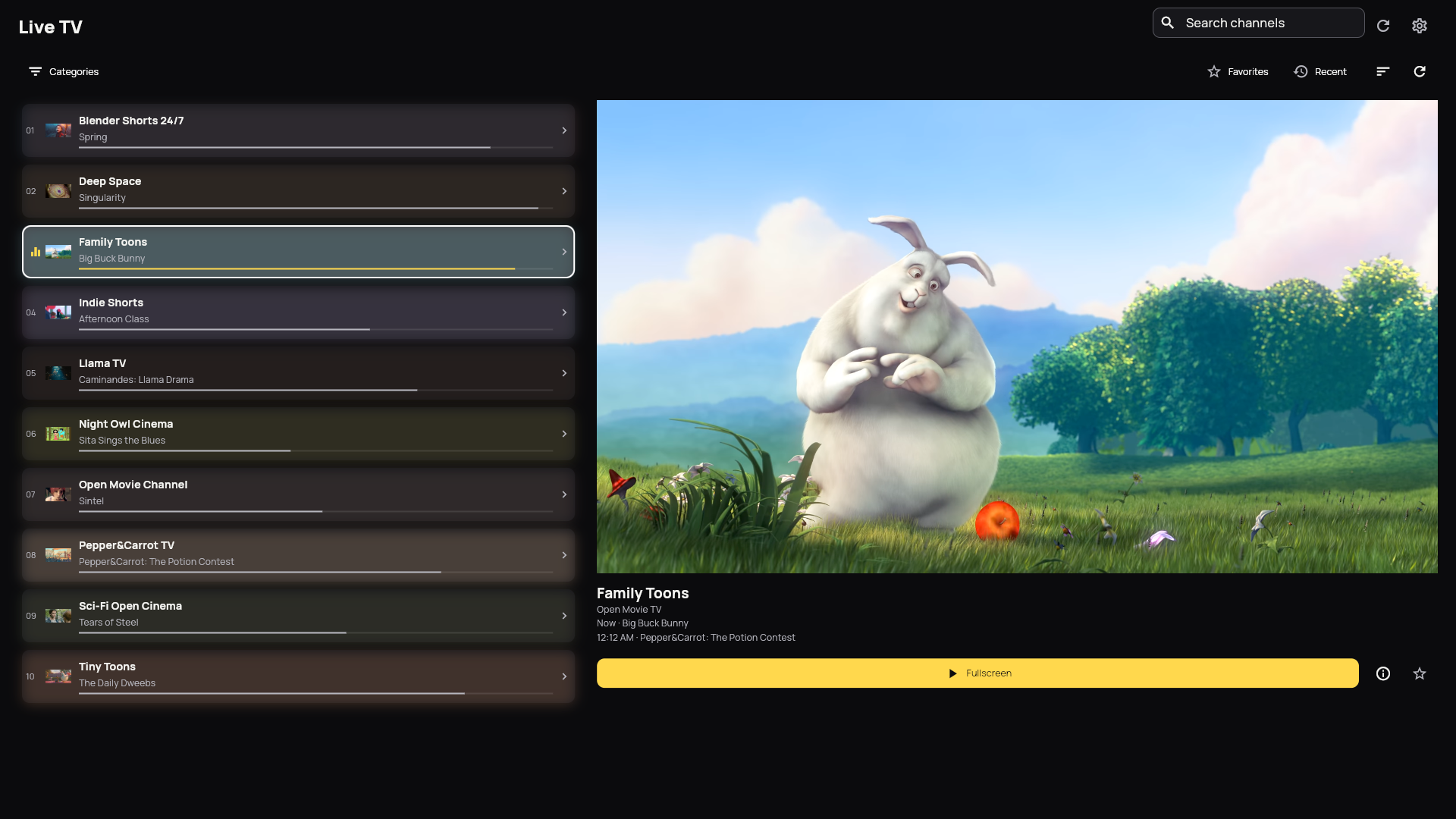
App TV-layout live TV screen: a channel list with now-playing progress beside a preview of Big Buck Bunny
A guide that stays beside your previewFictional XMLTV example · 19:30
01
Weekend SportsNow · The slowest race
Next · Highlights
02
Nature TimeNow · Sloths, obviously
Next · Ocean life

Channel names and listings come from your source. These examples are fictional.

App web-build capture in TV layout · sample channels

Setup

Bring the playlists you already have.

Set it up from your phone, so long passwords never meet the TV keyboard. Three steps, then pick a show.

  1. Add your TV

    Open LazyPlayer on your TV. On your phone, log in or create an account at lazyplayer.app/login and enter the eight-character TV code.

  2. Connect your source

    Paste an M3U URL or enter your Xtream Codes details. Your phone shows import progress.

  3. Start watching

    Share the playlist with your TV from the dashboard. Each TV can choose independently from its shared playlists.

Works with your sources

  • M3U playlists

    Paste your playlist URL. Live channels, movies and series are organized from what your source provides.

  • Xtream Codes

    Server address, username and password, typed on your phone instead of the TV keyboard.

Managed from your phone

  • One account manages all your TVs.
  • Choose which TVs use which playlists.
  • Rename or reconnect a TV and manage its $1 yearly subscription.
  • Refresh or remove playlists, hide titles, reorder them and update artwork.
  • Each playlist keeps its own favorites and history.
Open your dashboard
Bring your own playlist. LazyPlayer is a player, not a content subscription. It does not supply channels, movies, series or playlists. Add a playlist you are authorized to use; content availability comes from that source.

Plans

One TV. $1 a year.

90 days free, no card needed. Then $1 USD a year per TV, renewed annually until you cancel. Two TVs cost $2/year; five cost $5/year. Player only; no content included.

One license for each TV.

Two TVs cost $2/year; five cost $5/year.

Each TV has its own recurring subscription. Manage renewal in your dashboard or PayPal.

Choose your TV

90 days free on each TV

No card needed.

Works on

  • Android TV Available
  • Samsung Tizen In development and device testing

Check your model before buying: support@lazyplayer.app

FAQ

Before you press play

Straight answers before the opening credits. Still curious? Email support@lazyplayer.app.

What is an IPTV playlist player?

An IPTV playlist player opens the live TV and on-demand streams in a playlist you provide. LazyPlayer supports M3U URLs and Xtream Codes, with remote navigation, movie posters, search and favorites. It does not sell or provide content.

Are channels, movies or series included?

No. LazyPlayer does not include channels, movies, series, guide data or a content subscription. Everything you watch comes from a playlist you are authorized to use.

Which TVs can I use with LazyPlayer?

Android TV is the first platform; Samsung Tizen is the second and remains in development and device testing. Availability and playback support depend on the device. Contact support with your TV model before purchasing. Each TV needs its own license.

Can I use my playlist when switching from TiviMate or IPTV Smarters?

If your provider gives you an M3U playlist URL or Xtream Codes details, you can add them to LazyPlayer. Your previous player’s license, settings and viewing history do not transfer. Check device availability and try your playlist during the demo before deciding.

How much is the player subscription?

The player costs $1 per year in USD, per TV. Payments recur automatically until you cancel in your dashboard or PayPal. Cancelling keeps access through the paid period. The annual plan covers the app only; content-provider charges are separate. Existing lifetime licenses stay valid.

How does the 90-day free demo work?

The player runs free for 90 days per TV. After the demo, approve a $1 yearly recurring subscription to keep that TV unlocked. The demo does not start automatic payments; you must approve a subscription. You need your own playlist during the demo too.

Will changing players stop buffering?

Buffering depends on your stream source, connection and TV. LazyPlayer cannot guarantee buffer-free playback or increase the frame rate of the source. Try your streams on your device during the demo.

How do I get help with setup or compatibility?

Email support@lazyplayer.app with your TV model and a description of the issue. Do not send playlist passwords or private stream links.

The lazyPlayer gold lounge chair with a play symbol

Popcorn optional. Couch mandatory.

90 days free on each TV, no card needed. Keep it for $1 a year per TV, renewed annually until you cancel.

Notes and credits

1 LazyPlayer is a player only. It ships with no channels, movies, series, EPG data, or subscriptions and provides no content. App captures show LazyPlayer’s TV interface, captured from a development web build playing a sample playlist of Creative Commons open movies, mostly by the Blender Foundation, with artwork taken from frames of those films. Synopses, genres and channel names in the captures were written for the demo. Illustrated scenes use fictional titles and sample artwork. None of these titles are included with the app.

Open movies shown in the captures, by license. Film frames are cropped and resized from the original films; frames from CC BY-SA films remain under CC BY-SA. CC BY 2.5: Elephants Dream (2006, Blender Foundation / Netherlands Media Art Institute). CC BY 3.0: Big Buck Bunny (2008), Sintel (2010), Tears of Steel (2012) and Caminandes: Llamigos (2016), Blender Foundation; Caminandes: Llama Drama (2013), Blender Foundation / Pablo Vazquez; Afternoon Class (2014) by Osro. CC BY-SA 3.0: Caminandes: Gran Dillama (2013), Blender Foundation / Pablo Vazquez; Cosmos Laundromat: First Cycle (2015), Blender Foundation. CC BY 4.0: Glass Half (2015), The Daily Dweebs (2017), Hero (2018), Spring (2019), Coffee Run (2020), Sprite Fright (2021) and Charge (2022), Blender Foundation; Singularity (2026), Blender Studio; Sound Asleep (2021) by Samuel Mergenthaler; Pepper&Carrot: The Potion Contest (2017) by Morevna Project, Gregoire Lourme and David Revoy. CC BY-SA 4.0: Pepper&Carrot: The Secret Ingredients (2022) by Morevna Project, based on the webcomic by David Revoy. CC0 1.0: Sita Sings the Blues (2008) by Nina Paley. Films via blender.org and Wikimedia Commons.